
Your files on your PC.
Your work with AI.
Gradient is a desktop workspace that keeps the files on your computer as the source. Open and edit documents, ask AI, share with your team, and fill templates from your material, all in one app.
For macOS and Windows

Open any file
and edit it right there
Drag files in from Finder or Explorer: a copy joins the project and the original stays where it was. Documents, sheets, slides, PDFs, drawings, photos, video and 3D each open in a viewer made for them.
Edit in the app
md, Excel and csv sheets, pptx slides (and present them), Hangul documents, text and signatures on PDFs, crop and annotate photos, all without another program.
Drawings without CAD
Open dwg and dxf drawings and glb, obj and stl 3D files with nothing else installed.
Project search
Search document contents, chats, team posts, to-dos, events, workflows and diagrams at once, and jump to the spot.
Fill forms
Find the blanks in docx, xlsx, pptx, hwp and html files and fill them. The original stays; the filled copy is a new file.
Summarise, translate, send
Make a summary, read through a translate lens, export to PDF or images, or send with a 6-digit key.
Undo one by one
Every file the AI made or changed can be undone, one at a time, from the file history.
AI that reads your files
and cites them
The AI searches and reads your project files itself, and says which file and section each answer came from. When it needs to, it searches the web and reads the pages.
Changes only what you asked
In an md document it edits just the spot you asked for, without rewriting the rest.
Checks by looking
It looks at drawings, PDFs, slides and sheets as pictures, and saves evidence images with numbered boxes on what it used.
Dedicated agents
Agents for pptx, spreadsheets, html, md, capture and figures make the thing, look at the result, then fix it.
Asks before it acts
Before it first moves the app's screens in a conversation, it shows an approval card. Stop is always there.
A side chat everywhere
Talk next to Diagrams, slide decks, Workflows and the Browser, with what's on screen as context.
Write the task.
The template gets filled.
Attach the document to fill and your material, then write the task. The AI builder proposes a plan; once you approve, it decides where to look for each field, gathers the material, and leaves the result with a source for every field.
Paste a table or an xlsx and each row becomes its own case, up to 50 at a time.
Using WorkflowsTask and material
Attach the document and material and write the task. Paste a mail or memo and it's split into the fields.
Approve the plan
The AI builder proposes how to split the work. “Approve and build” creates the units and search nodes.
Search per field
Each field is looked up in documents, on the web, or by asking a teammate.
Result and sources
You get the result document, a log of every value put in and an evaluation report, with where each value was found.
Redo only the gaps
Run again for just the missing fields. Pinned places are checked first next time.

It remembers what you tell it,
and forgets when you ask
Say “remember this” and it's kept in project memory for later chats. You can always see what it remembered and where it was used, and change it.
See what was used
Memories used in an answer are listed under “Used n memories”. Edit them or make it forget right there.
Eight switches
Turn eight kinds of memory on or off one by one. What's off is neither collected nor given to the AI.
Memory is yours
The memory folder is always fully private. Only the team glossary is shared with the team.
Heard plans
Plans mentioned in chat are collected, and you decide whether each goes on the calendar.
Share with your team,
not with a server
One team per project. Talk in announcements, channels and threads, and pass files around. Posts and files stay on the author's device; the server only knows order and addresses.
Threads in threads
Reply in a thread under a channel post, and in a thread inside that one.
A team AI
Start an AI thread with #ai. By default it reads only team files.
Edit together
Co-edit team pptx, Excel and text files. Hangul documents are edited one person at a time.
Draw together
Share a diagram with the team and work on the same canvas.
A to-do is a checkbox line
in a plan file
Plans are md files, and to-dos are the checkbox lines inside them. See them as a list, a board or plain md; drag a card and the file changes.
Four columns
To do, Doing, Waiting, Done. The mark on the line is the status.
Just say it
Tell chat “mark it done” or “by Friday” and it updates the line.
Requests from teammates
Requests your teammates send show up in To-do too, ready to answer.
Your calendar
One calendar per person, saved on this PC only. Lines with a 📅 date become events.
Leave the files where they are.
Get just the values.
Say “Get the education history from Minsu's résumé and fill the application” and only those items are requested. Once Minsu approves, Minsu's AI looks only in shareable files and sends just the values. Files never leave the device.
People set the levels
Files are fully private (the default) or shareable. Only people can change a level; the AI can't.
The owner approves
The request lands in the owner's To-do, and nothing is searched until they approve.
Values only in the result
Received values go only into the result document. Chat and logs show progress, not values.
Check before sending
Optionally review the values yourself before they're sent.
Originals on one PC.
Work from anywhere.
Each account has one host PC that holds the originals and runs the AI and workflows. Other PCs link to it with a code and carry on in the same project.
Link with a code
Link another PC with a QR code (10 minutes, single use) and a matching confirmation number.
Even when the host is off
Copies of documents you opened stay viewable while the host PC is off.
Your PC on your phone
Scan the QR with the phone app to see and control the PC screen, with no sign-in on the phone.
The tools you reach for
are already inside
From drawing to screen sharing, use them in the app without installing anything else.
Using PlaygroundDiagrams
A draw.io canvas that saves itself. The AI in the side chat draws on it directly.
Browser
A browser inside the app. Talk to AI about the page you're on and save the page as md. In the AI tab, watch the AI's screen and step in.
Image generation and editing
Make and change pictures from words. The server copy is deleted after 72 hours.
Screen share and file transfer
Show your screen or send files with a key. File transfer needs no sign-in, and files don't pass through the server.
Monitoring
For each chat turn and workflow run, see how many AI calls and tokens it took, as a board, a Gantt chart or a flow.
Market
Pick features to install. A feature can only do what it declares, and removing it keeps your documents.
Models change.
Your files stay.
The search index and chat history are by-products, rebuilt if deleted. The source is always the files in your project folder.
Files are the source
Notes, diagrams and imported documents are all files in the project folder.
You can undo
Every write except an AI call can be undone. The index is rebuilt; the originals stay as files.
Data here, intelligence online
Files, search and reading work offline. Only AI answers need a connection.
Keys stay on this device
Your account token is stored only on this computer and never reaches the interface.
No team posts on the server
Team posts, files and screens travel between devices. The server handles accounts, order and signals.
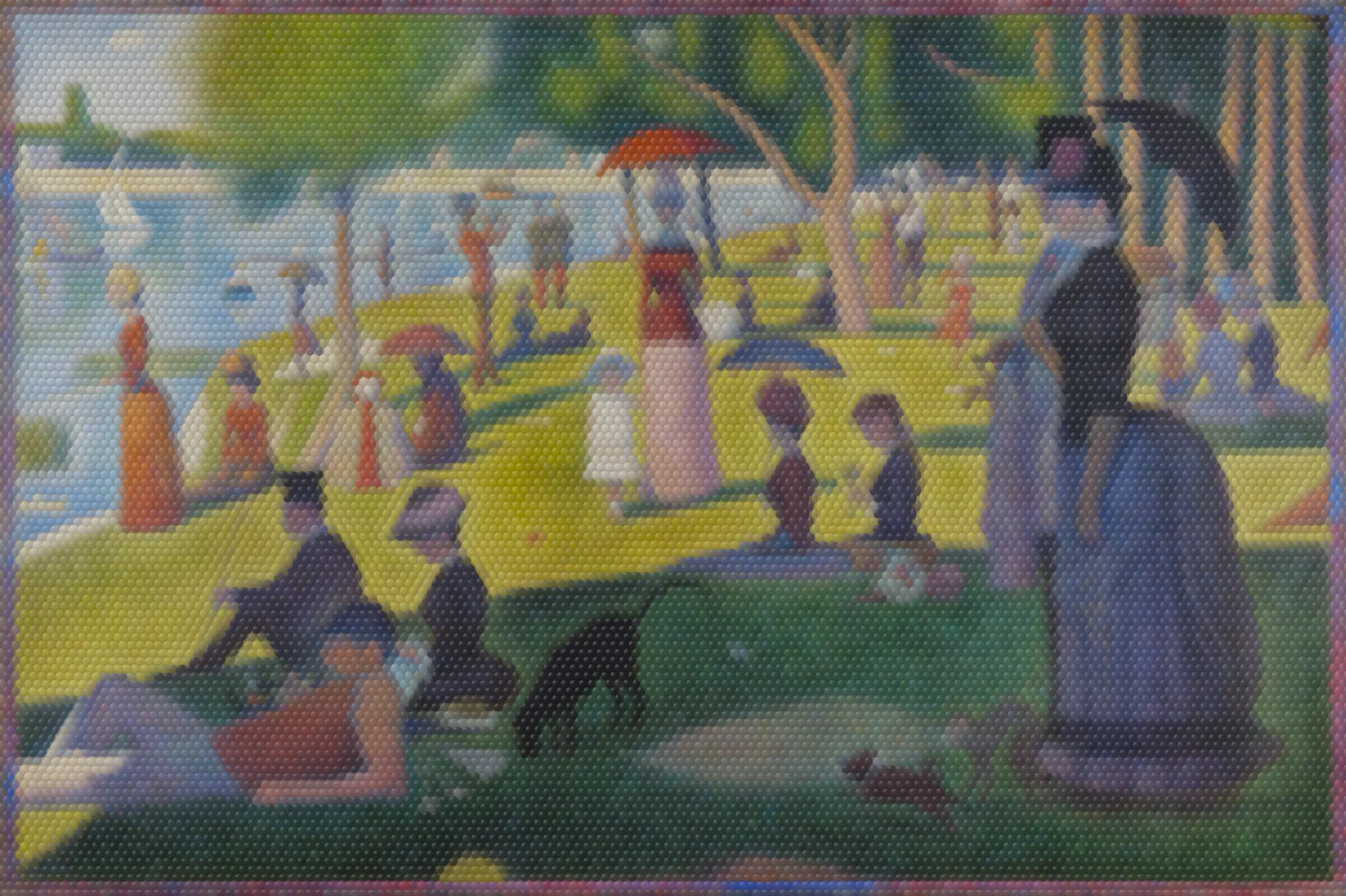
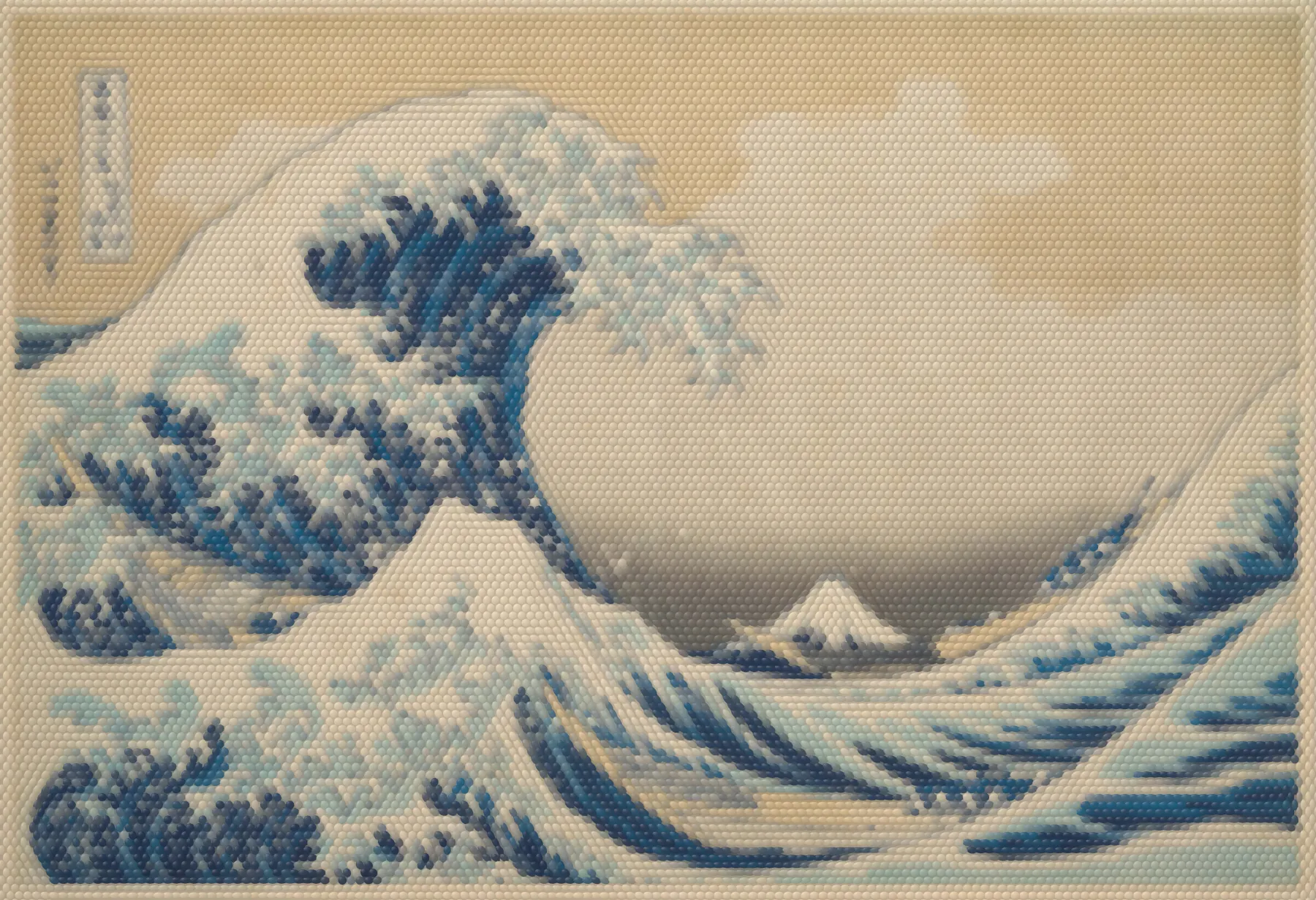
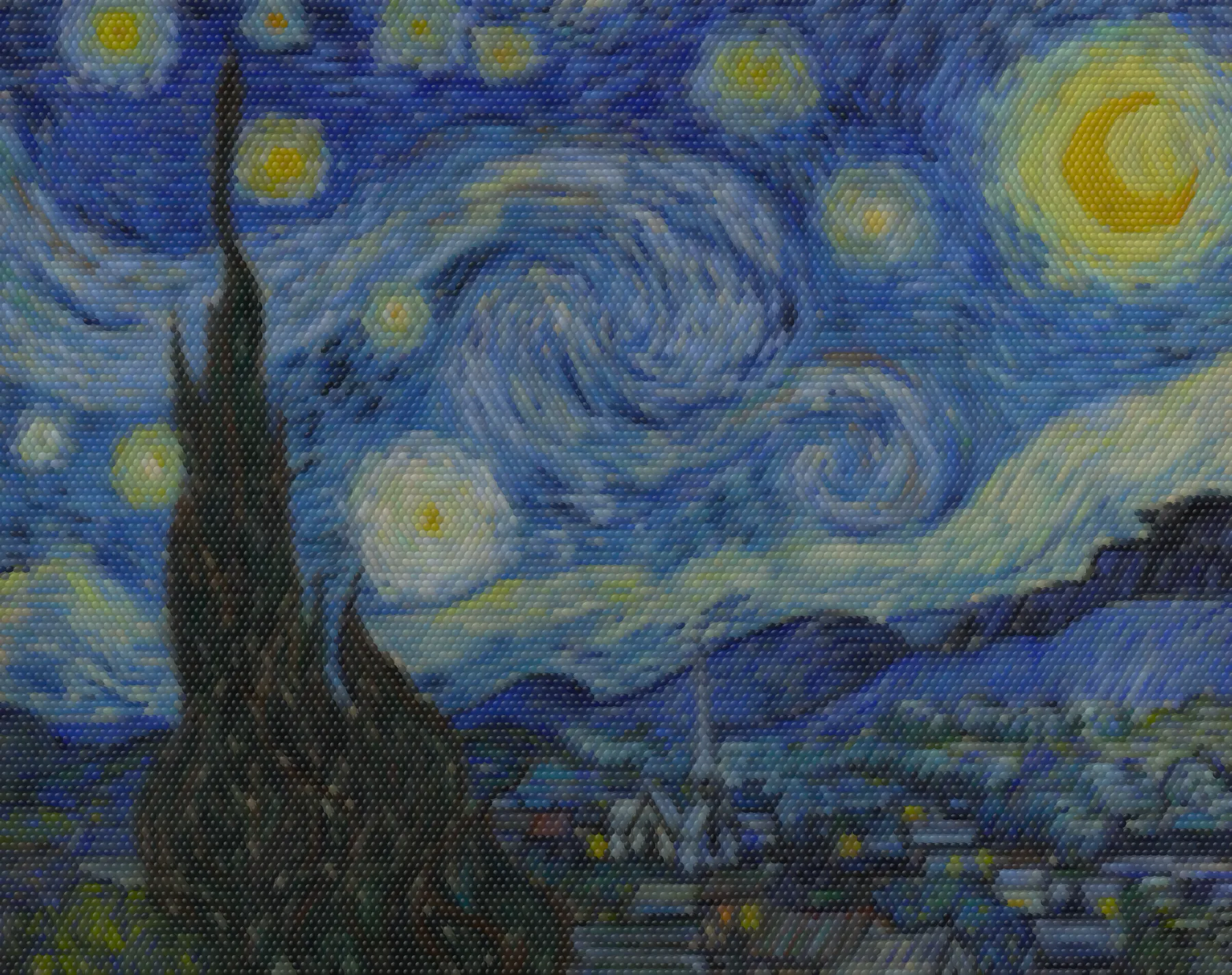
The gradient comes from paintings
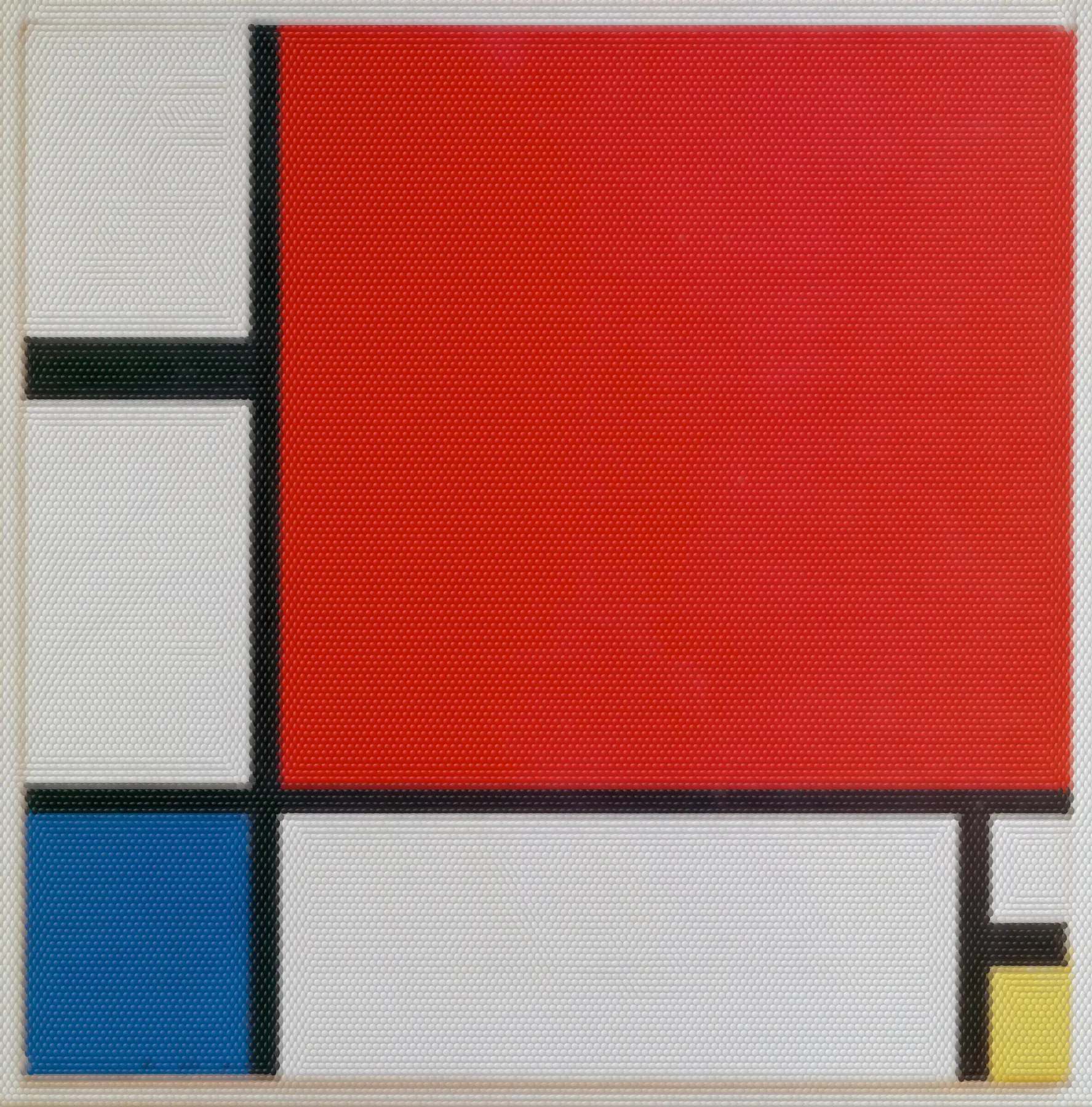
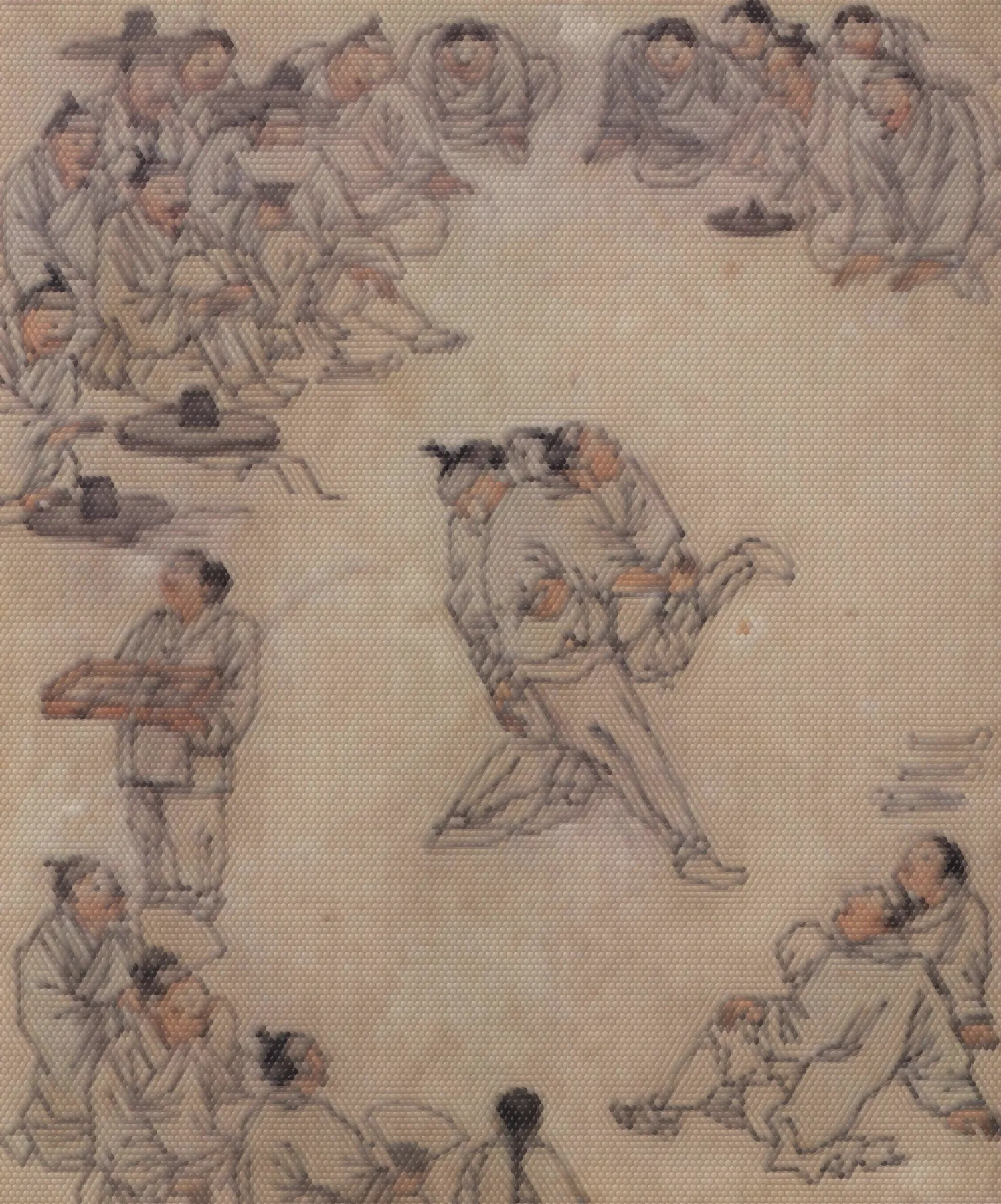
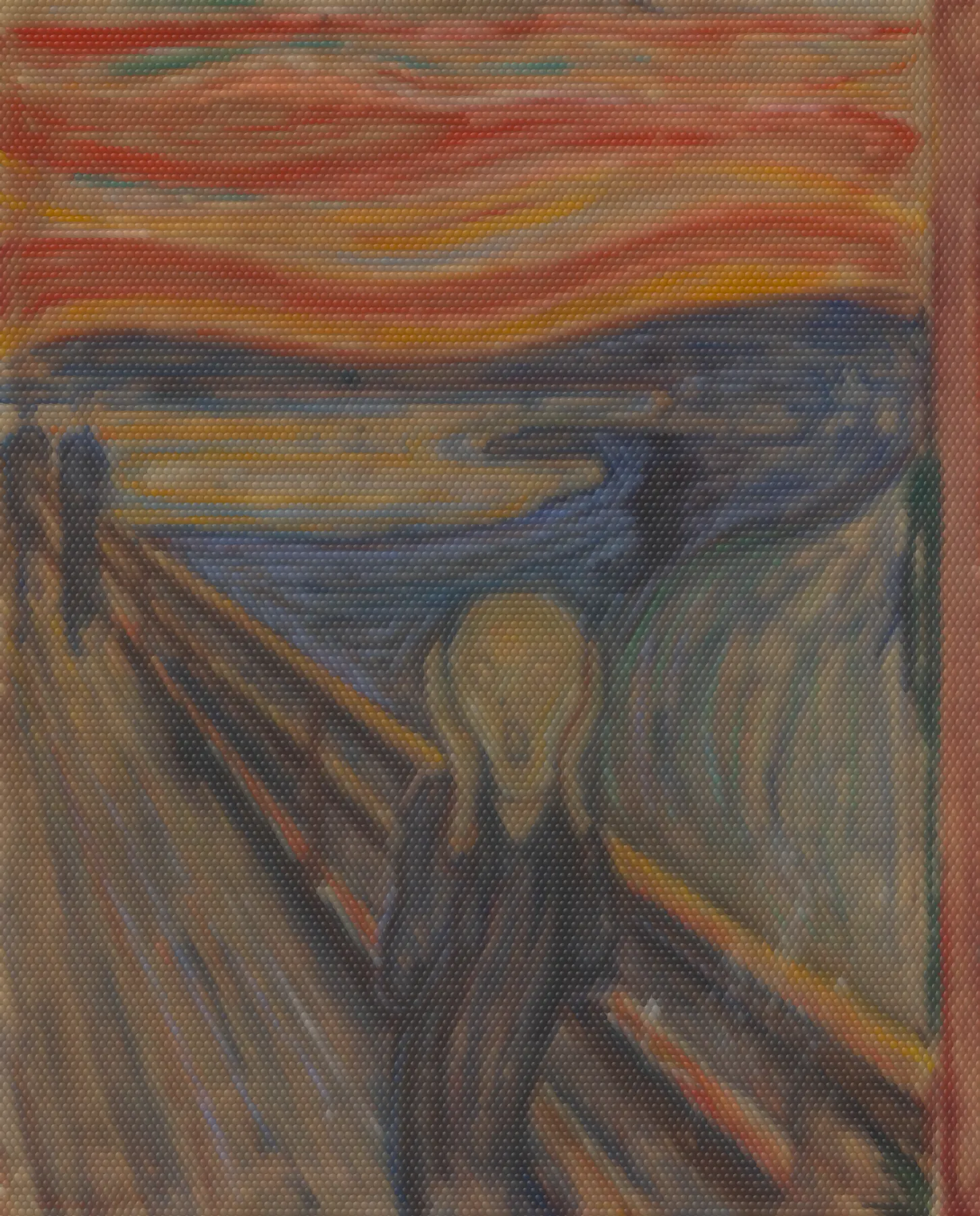
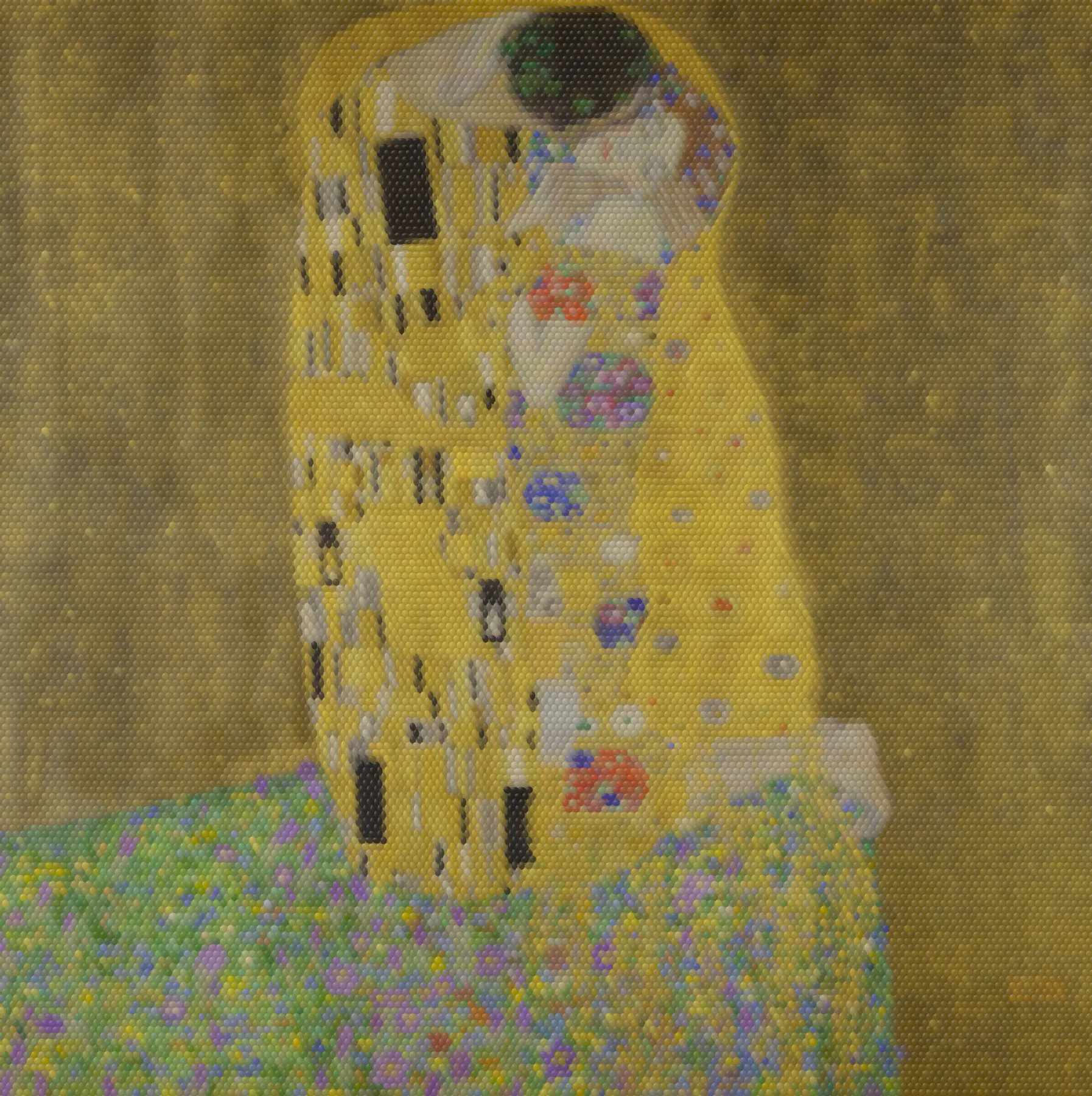
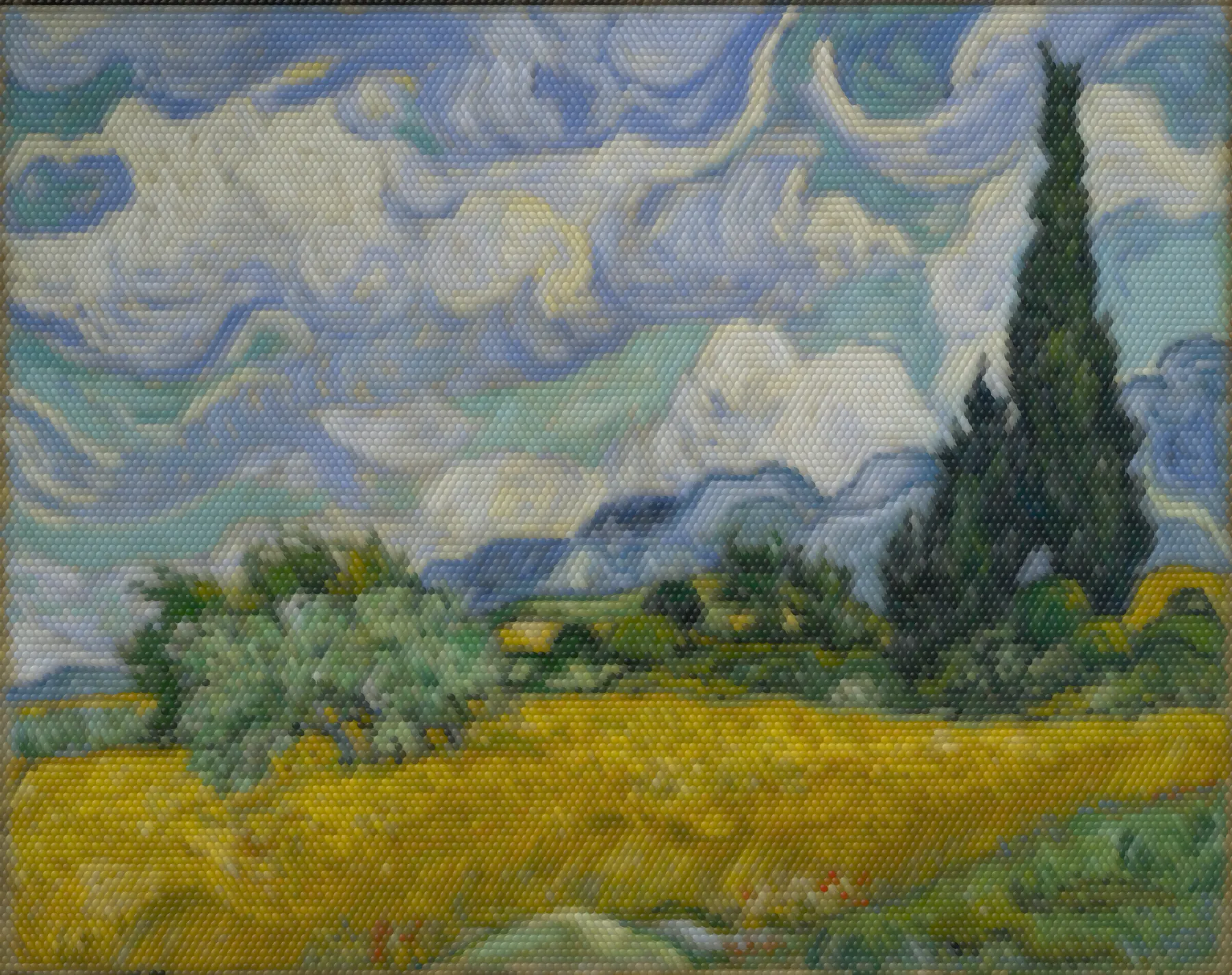
The paintings on this site and in the app are twelve public-domain masterpieces, each redrawn in 15,000 to 29,000 dots. Press or rub one and energy flows from dot to dot until it hits a colour edge and fades. The gradient inside each dot points where the energy is going.
The same pieces hang on the app's new-chat screen and the phone's home. Press a painting to open it large and try it.
Questions
More answers are in the Docs under “Troubleshooting”.
Is it free?
The app is free to download. AI, image generation, screen sharing and file transfer have weekly limits per account, refilled every Monday at 0:00 KST. You can see your usage on the account page.
Does it work offline?
Opening, searching and editing files work offline. AI answers, images and teams need a connection and sign-in.
Where are my files kept?
In the project folder on your computer. Team posts and files also stay on the author's device; the server only handles order and addresses.
Which computers does it run on?
Macs with Apple Silicon (macOS) and 64-bit Windows.
What does the first launch download?
Three components: a converter (ffmpeg), a browser engine (Chromium) and a diagram editor (draw.io). The app opens once they're ready.
How do I sign in?
Sign in with your Google account from the app. Sign-in happens in your system browser, and the account token is stored only on that PC.
My Mac won't open the app.
Builds aren't signed yet, so the first launch needs “Open Anyway”. The install guide walks through it.
How do updates work?
Check for a new version in Settings, install it and restart. Nothing changes until you press the button.
Get Gradient
Download the app for macOS or Windows for free. Sign in to your account in the app to use AI answers.